Signal is widely used for private, end-to-end encrypted communication. But there are legitimate scenarios where using your primary phone number or device isn’t ideal — especially for security research, mobile application testing, or account isolation.
This guide walks through how to install and run Signal on a virtualized Android device using Corellium and OpenGApps. Running Signal in a controlled virtual environment allows researchers and developers to isolate accounts, reset device states instantly, and observe application behavior without impacting production hardware.
Can You Use Signal without Your Main Phone or Physical Device?
Yes. Signal can be installed on a virtual Android device, allowing you to isolate accounts, test app behavior, and experiment safely without using your personal device.
Why Run Signal in a Virtual Android Device?
Virtual Android environments are commonly used in mobile app security testing, reverse engineering, and malware research. By running Signal in a high-fidelity virtual device, you can evaluate runtime behavior, test detection mechanisms, and reproduce workflows across Android versions in a controlled setting.
This can be helpful if you need to use Signal, but do not wish to share your primary phone number or use your primary device.
Prerequisites to follow along with this tutorial:
- You have an Android device created. If you haven't yet, check out our Quickstart for Android article.
- You must have OpenGApps installed on that Android device. Check out Installing Apps with OpenGApps for instructions.
Note: OpenGApps is available for all firmware versions from Android 7 through Android 12.
Data Privacy
Before you get started, we suggest you read our Terms of Use and Privacy Policy.
The short version is that we do not collect any information from inside virtual devices. When a virtual device is deleted, all device data is immediately erased. Device metadata, such as the name of the device and the OS version, is stored in backups, which are regularly deleted every 90 days.
How to Install Signal on a Virtual Android Device
Step 1: Download Signal for Android
To install the Signal messaging app without signing in to the Google Play Store, use your own browser and:
- Navigate to https://signal.org/android/apk/
- Click Download and note where you save the file.
Step 2: Install Signal on Your Android Device
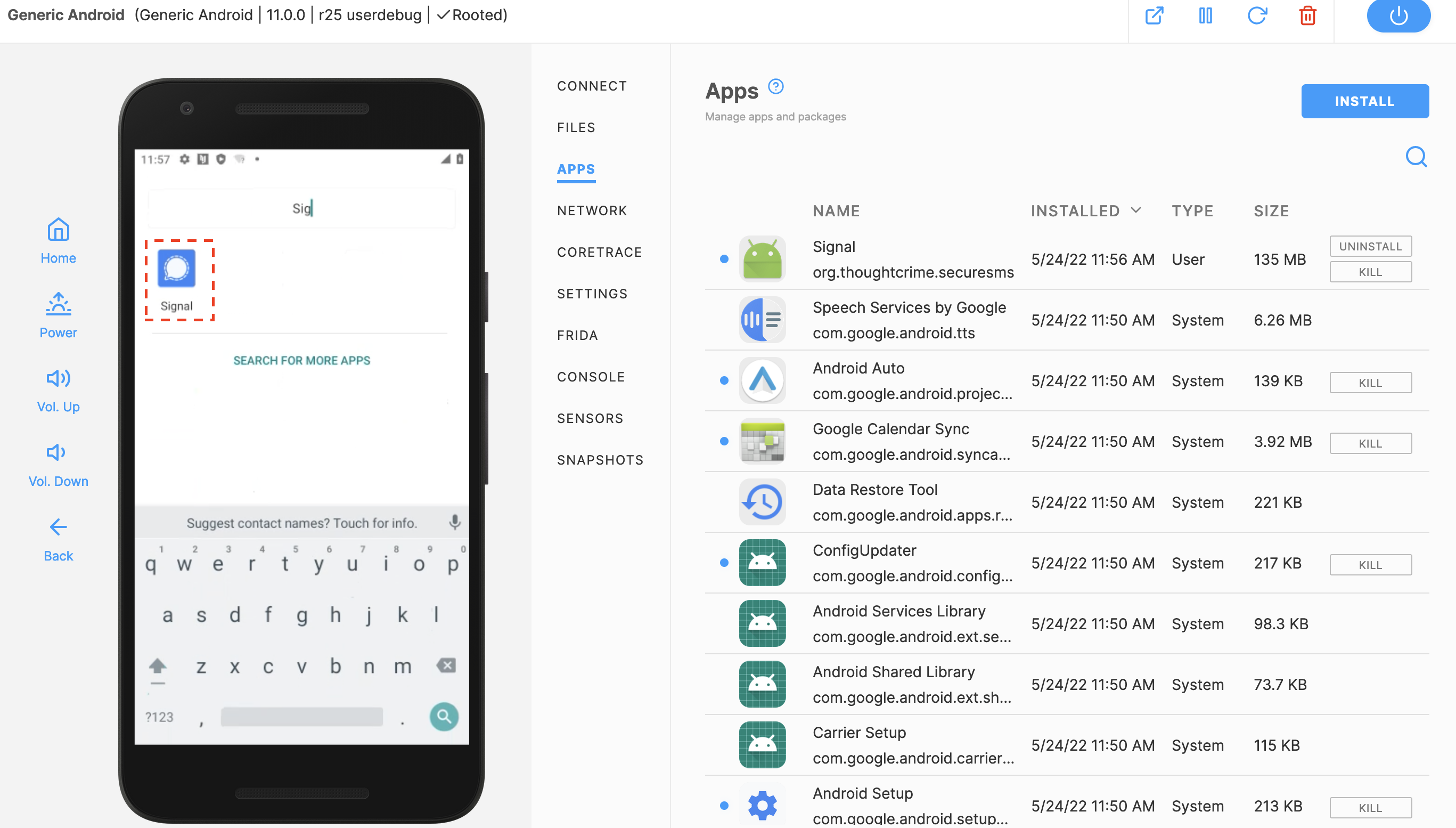
- Click on Apps in the menu to the right of your virtual device, then Install.
- Select the Signal file you downloaded, then click Open.
- Click on the Android device and move your mouse upwards to get to the main menu. You can then search for the Signal app and open it.
Step 3: Set Up Your Signal Profile
You’re free to set up your Signal profile in whatever way works for you. Here’s one example:
- Launch Signal and click Continue to create a new profile.
- Click Continue to allow Signal to access the contacts.
- Click Allow to confirm this one more time.
- Click Allow allowing Signal to make and manage phone calls.
- Enter your phone number to get started (e.g. a Google Voice number).
- Click OK to confirm the phone number.
- Enter the verification code using the virtual keypad.
- Set up your profile with a first name (required), last name (optional), and photo (optional).
- Create a PIN with at least 4 digits, click “Next,” confirm the PIN, and “Next” again.
You’re all set! You can now send and receive Signal messages, just like you would on your physical device. You can pause and restart your virtual Android device as needed.
Note: If you skipped Step 2, Android and Signal may display messages saying your device is missing Google Play Services. You may also be presented with a CAPTCHA to confirm that you are a human.
Extending This Setup for Security Research
Once Signal is installed on a virtual device, researchers can:
- Intercept and inspect network traffic
- Snapshot and restore device states during testing
- Evaluate jailbreak/root detection behavior
- Perform dynamic instrumentation in a safe environment
Once you set up your Signal profile, you can check if sending and receiving messages works as expected.
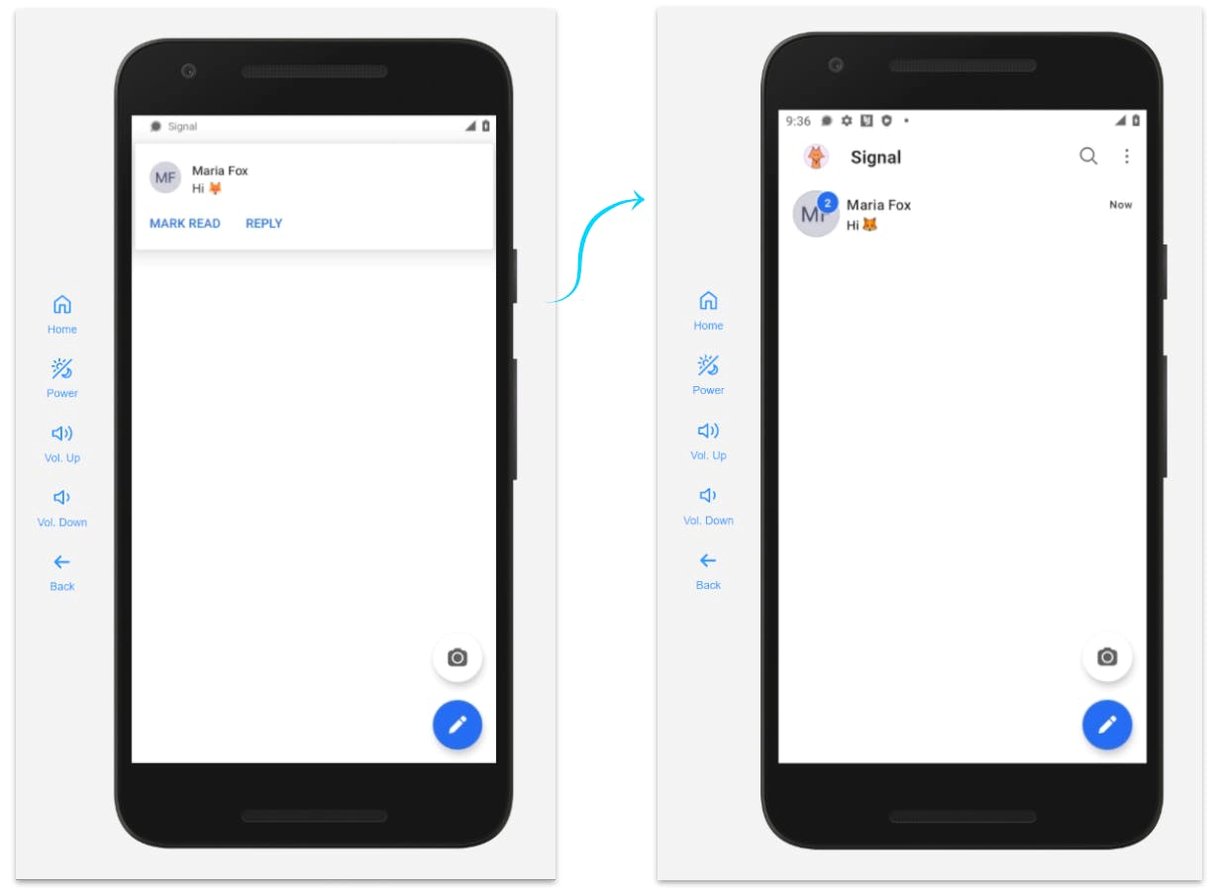
To test receiving messages, send a Signal message from a physical device to the phone number you registered with. In this example, the external account is “Maria Fox” and the Signal account registered on the Corellium device is “Azeria.”
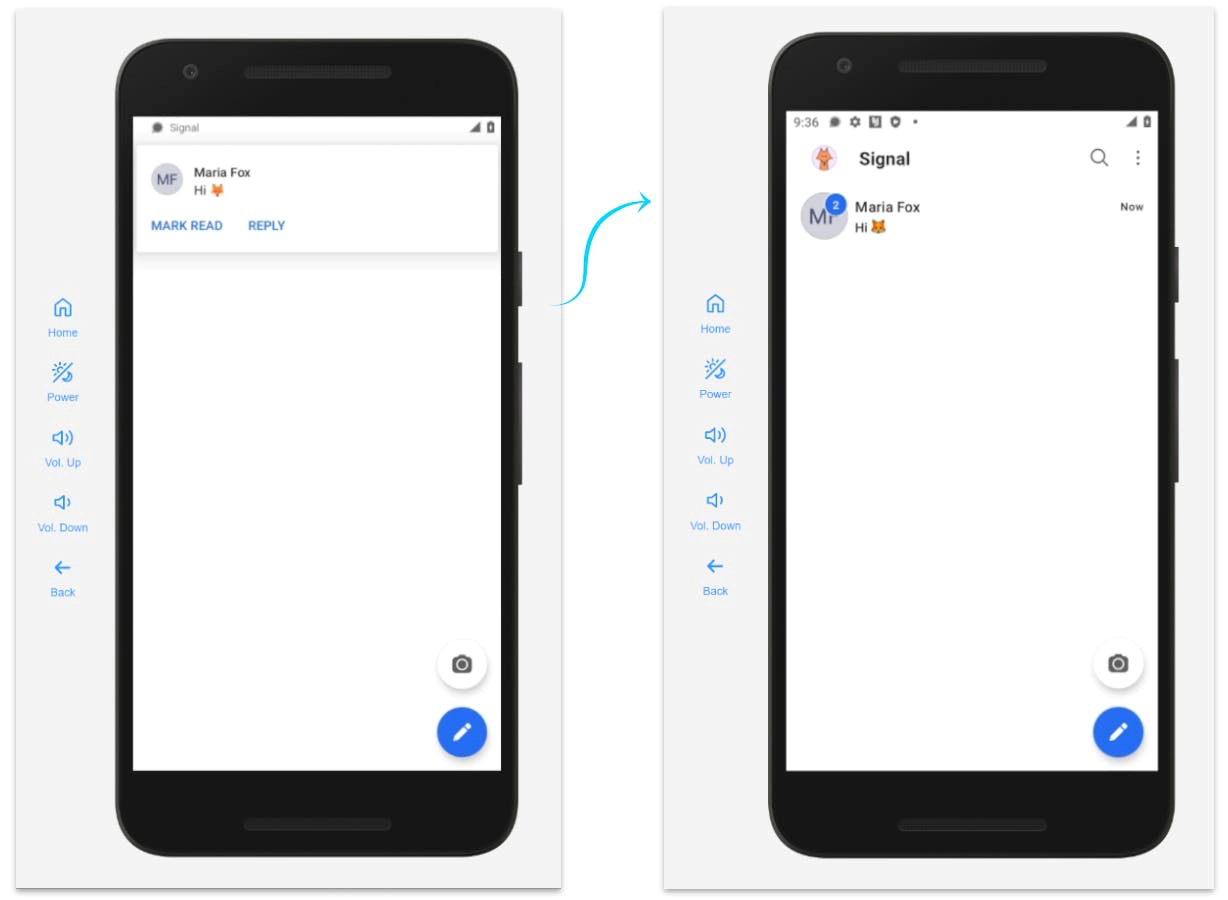
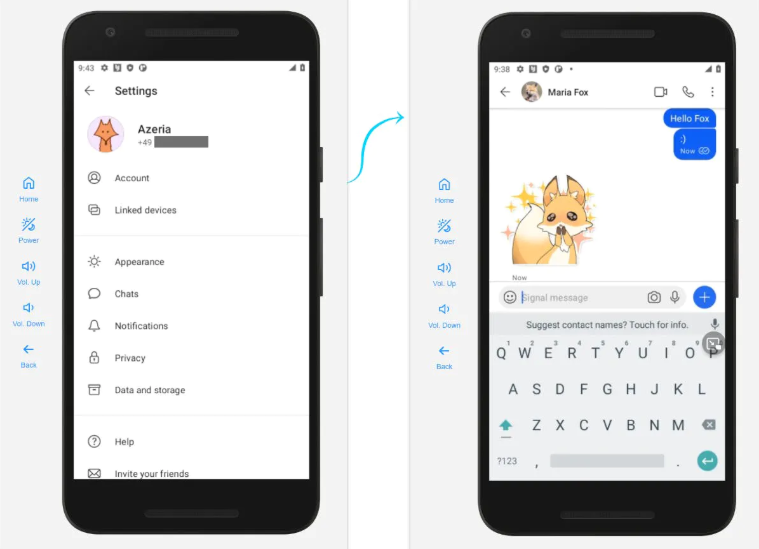
To test sending messages, reply to the message you received on your Corellium device. In this example, the “Azeria” account on the left is sending a message to “Maria Fox.”
Works like a charm! You are ready to go.
Step 4: Delete Your Signal profile
To delete your Signal account, profile photo, and all your messages, follow the steps below.
- Launch Signal and click on your icon in the top left corner.
- Select “Account” and “Delete account.”
- Select your country and enter your phone number.
- Click “Delete account” and then once more to confirm.
Step 5: Delete Your Android device
To delete your Android device, click on the trash can icon in the top right corner of the page, then click "Delete" to confirm in the modal.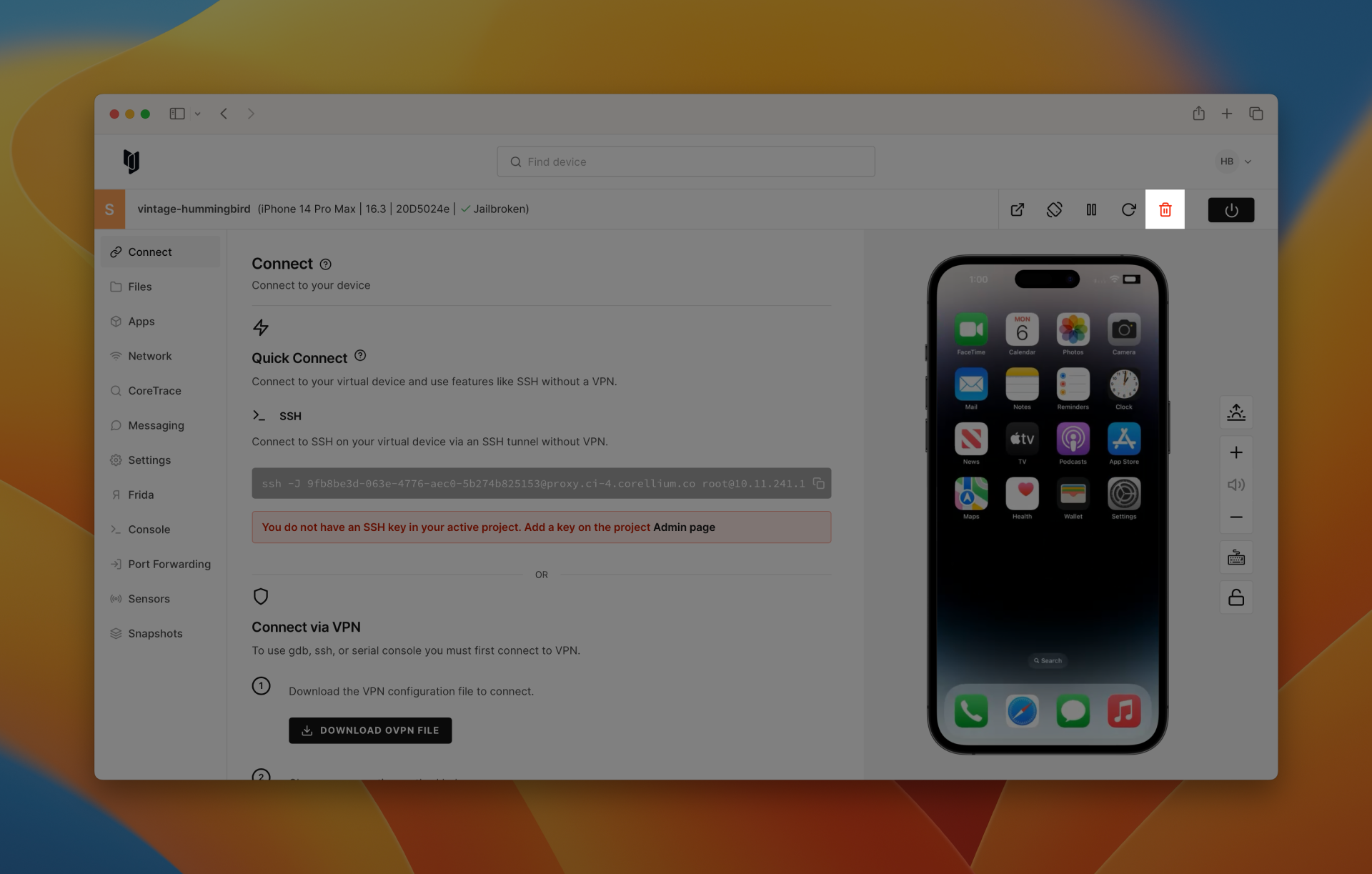
When a virtual device is deleted, all device data is immediately erased. Device metadata, such as the name of the device and the OS version, is stored in backups, which are regularly deleted every 90 days.
Running Signal in a virtual Android device enables account isolation, reproducible testing, and secure experimentation without affecting personal hardware. Discover how Corellium's virtualization platform can revolutionize your approach, especially when working with signal devices. Book a meeting today and explore tailored solutions for your unique challenges.
Frequently Asked Questions
Can Signal detect that it’s running on a virtual device?
Some apps attempt to detect emulators or rooted environments. Using high-fidelity virtualization reduces detection artifacts compared to traditional emulators.
Is using a virtual device safer than using your personal phone?
For testing and research purposes, a virtual device provides isolation and easy reset capabilities.
Can this setup be used for mobile app penetration testing?
Yes, isolated virtual devices are commonly used for dynamic analysis, reverse engineering, and security validation.